October 2026
Introducing Interactions
Today we're releasing Interactions, a new home in RW for every touchpoint with a patient. Calls, messages, appointments, and hospital visits used to live in different places: inside forms, in imports, or in another system entirely.
Now they come together on one timeline, so anyone on the care team can open a patient’s Interactions and see what happened, when, and what work it was part of.
Know the last touchpoint before you reach out
Before you call a patient, you can know who interacted with them last and how it went. Interactions answers that in a glance.
Connect what happened to the work
An interaction links to the workflow or action it belongs to, and actions show their interactions right in Activity. You can move between the two in one click.
Let the timeline build itself
Calls logged in forms, appointments from your scheduling system, and hospital visits from your ADT feed show up on their own. No extra data entry. Which interactions appear depends on your organization's setup.

Four Types of Interactions
Calls

Inbound and outbound calls logged in RW, with the outcome.
Appointments

Past and upcoming appointments from your scheduling system, with the type, provider, location, and status: scheduled, completed, or cancelled
Visits

Hospital visits from your ADT feeds with the facility, admit date, admit reason, discharge date, and discharge disposition
Messages

Texts sent to and from the patient, logged in forms, imported from other systems, and sent via RoundingWell (coming soon).
Interaction Details
Recent Interactions in Sidebar
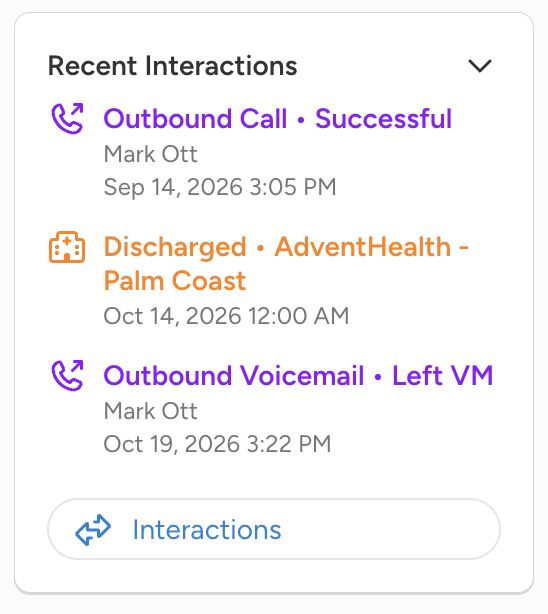
See the most recent touchpoints from the patient sidebar. Click one to open it on the timeline.
Filtering the Timeline
Click any of the interaction types to filter the interactions timeline
Jump to a Date
Click any date on the timeline for shortcuts to jump to specific times on the timeline
New worklist navigation shortcut: View Action on a Flow
When you’re on a worklist, sometimes you want to see an action in context of the flow it’s on. Clicking the flow name on the action now takes you to the flow’s page with that action highlighted.
This applies to Schedule too. You can now see the flow an action is on, so you can jump right to that action on the flow.